How to add Exam Group?
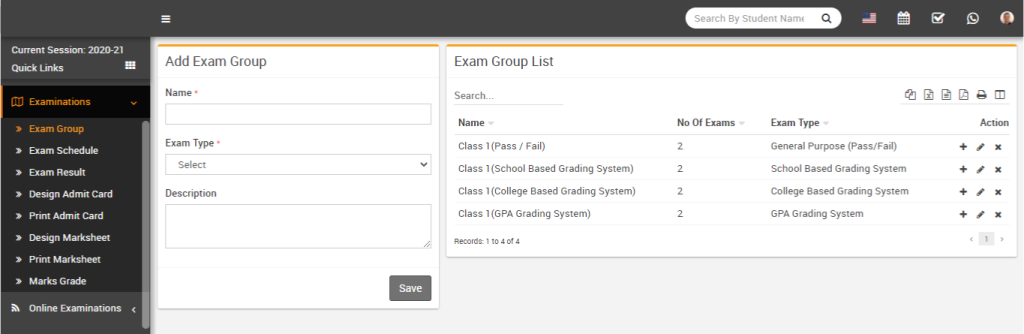
To add an exam group, go to Examination > Exam Group, then enter the Name, select the Exam Type, add a Description, and click on the Save button. The added record will be displayed in the Exam Group List on the right side of the page.
To add exam click on Add (+) icon present at Action column in the exam group list, at click of this icon Exam list page will be open.
To add new exam click on New Exam button present at top right corner of the exam list page, at click of this button Exam modal will be open.
Fill in the exam details such as Exam Name, Session, Publish, Publish Result, and choose whether to display the Admit Card Roll Number or the Profile Roll Number on the marksheet. Enter the Exam Passing Percentage, add a Description about the exam, and then click on the Save button. The added record will be displayed on the Exam List page.
To edit an exam, click on the Edit icon, and to delete an exam, click on the Delete icon available on the exam list page.